Monday, November 25, 2013

ReprapPro Huxley Bed Leveling

Leveling the bed of the 3D-printer is extremely important to ensure quality prints. The process can, however, be intrinsically difficult and tedious.
I have always used this guide to help me in the leveling process. As the guide is made for a Mendel, it does not quite fit my Huxley.

Here is my process for leveling the Reprappro Huxley.

The home position (X0, Y0) is at the bottom left and the bed on the Huxley is approximately 140x140mm. Hence, the positions are as follows (given by the G-codes).

P1 G1 X15   Y75   Z0
P2 G1 X140 Y75   Z0
P3 G1 X15   Y15   Z0
P4 G1 X15   Y135 Z0

The numbers are approximate positions for my Huxley. Your mileage may vary.
Notice that the Z is zero, so if your bed is totally misaligned, the extruder might crash to the bed creating a total havoc. Use Z5 or Z10 if you are unsure.

Since the materials in the bed and the extruder expand with higher temperature, the both the bed and the extruder should be heated.

  1. Start by setting the bed to 60C and the extruder to 150C
  2. Move hotend to position P1 (G1 X15 Y75 Z5). Use a z height of 5mm while moving the hot end across the bed, at least if you are not the brave one.
  3. Home Z and adjust the Z-axis end stop until the hot end is a paper thickness above the bed.
  4. Move hotend to P2 (G1 X140 Y75 Z5) and home Z
  5. Adjust the screws S2 and S3 until the distance between the hot end and the bed is the thickness of a paper.
  6. The bed is now initially leveled in the X direction. Now we need to check if the bed tilts in the Y direction. Move the hot end to P3 (G1 X15 Y15 Z5) and home Z.
  7. Adjust the height using screw S2.
  8. Move the hot end to P4 (G1 X15 Y135 Z0) and home Z.
  9. Adjust the height using the screw S3.
  10. Go back to step 2 and check that the P1 position is still fine.
  11. To be sure, check the P2, P3 and P4 again, and check that the height at middle of the bed (G1 X77 Y75 Z0) is a thickness of a paper.
  12. Make sure the screws are tightened. Be careful, as the tightening can make your bed out of level and you have to go back to step 2 again.


Wednesday, October 30, 2013

Halloween pumpkin LEDs and IR project

What's Halloween without a carved pumpkin? And what's the point of lighting the pumpkin with a candle when we have LEDs?


The LEDs flicker for 30s when someone is close to the pumpkin. Notice the IR-detector in the nose


In this post I will show how I built my pumpkin powered with a ATtiny85 microcontroller, some LEDs and an IR detector.


Firstly, I soldered 10 LEDS in two groups of five, driven by BC547 transistors. The transistors are driven by two pins on the ATtiny85. A third pin on the ATtiny is used to read a IR sensor (similar to the Parallax PIR). The electronics is driven by three 1.5V AA batteries.


10 LEDs driven by ATtiny85. The IR electronics is wrapped in plastics to protect it from pumpkin juice.


The purpose of the code is to let the LEDs flicker for 30s when the IR sensor is activated. The code is super simple and should not need any further comment. 

int led = 1;
int led2 = 0;
int pirPin = 2;
int calibrationTime = 10;

void setup() {               
  pinMode(led, OUTPUT);
  pinMode(led2, OUTPUT); 
  pinMode(pirPin, INPUT);
  digitalWrite(pirPin, LOW);
  for(int i = 0; i < calibrationTime; i++){
      delay(1000);
  }
}

void loop() {
  if(digitalRead(pirPin) == HIGH){
    for(int i=0;i<300;i++){
      analogWrite(led, random(120)+135);
      analogWrite(led2, random(120)+135);
      delay(100);
    }
  }
  else
    digitalWrite(led, LOW);
    digitalWrite(led2, LOW);

}


The LEDs are PWM driven with some random functions inspired by the Realistic Flickering Flame Instructable. The ATtiny was programmed using the Arduino IDE and my DIY programmer.


Once the electronics is completed it is time to carve the pumpkin. I used a template I found on the Internet to create the scary(?) face. It sure helped a lot.


After the pumpkin is carved and the face is completed, the pumpkin is washed, and the electronics is fitted. The IR detector was fitted in the nose of the face.

Once the pumpkin head is assembled, you might want to roast the pumpkin seeds. If you threw them away, you can enjoy a cup of tea instead. I followed this recipe and was fairly happy with the result.


Roasted pumpkin seeds (or what's left of them anyway)


Tuesday, October 22, 2013

Arduino ATtiny programmer circuit

In several small microcontroller projects there is a need for just a few pins and only a few KB of code. Atmels series of ATtiny microcontroller serves this purpose and can be programmed using the Arduino IDE.

An ATtiny such as the ATtiny85 can not be connected directly to a computer via a FTDI cable but needs an Arduino (i.e., a ATMega328) in between. I built this little circuit which connects the SCK, MISO, MOSI and RESET of a ATTiny to an ATMega using the latter as an ISP. This small prototyping unit also has some header pins and a small solderless breadboard for prototyping circuits for the ATtiny.


The prerequisite to run this board is that the ATmega328 is preloaded with the Arduino bootloader. You also need to prepare the Arduino ISP for ATtiny microcontrollers.
  1. Download the zip file from GitHub.
  2. Unzip the zip-file and place the attiny folder under a "hardware" folder in your Arduino sketchbook directory.
  3. You should now see the ATtiny entries under the board menu in the Arduino ISP.
  4. Connect the FTDI adapter (as this one from Sparkfun).
  5. Select the Arduino Uno from the board menu.
  6. Upload the ArduinoISP sketch from the examples menu (you only have to do this once).


After that, you are ready to program the ATtiny. Follow this procedure:
  1. Open the Blink sketch from the examples menu.
  2. Change the pin number for the LED from 13 to 0.
  3. Select the ATtiny85 from the tools > board menu.
  4. Select "Arduino as ISP" from the tools > programmer menu.
  5. Upload the sketch and watch the LED (you just connected at pin 0 on the ATtiny85) blink.
The circuit diagram for my ATtiny-programmer board is shown below.


Female headers are used to break out all the pins on the ATtiny. I also added a DIP switch (not in the diagram) do disconnect the ATMega328 from the ATtiny once it is programmed.


More information about ATtiny Arduino stuff can be found in the links below:


The board can also be used to bootload an ATMega328 by connecting the SCK, MISO, MOSI and RESET pins to the female headers as shown in the above picture. In this case the ATtiny must be removed. You must also add a 16MHz crystal and 22pF decoupling capacitors as well as a 10K pullup on the reset pin. The schematics for such a bootload circuit is shown here.


Sunday, September 1, 2013

Bathroom ventilation using an Arduino

Introduction

 
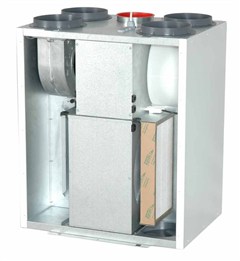
High humidity levels in your bathroom can lead to a fertile breeding ground for microbes like bacteria, mold and mildew. This can trigger allergic or other respiratory problem. Additionally, humidity can also significantly reduce the lifespan of the materials used in the bathroom. In my house I have a air handling unit with rotor exchanger (Flexit SL4 R) which sucks air from the bathroom (among other rooms) and blows fresh air into the house.

Flexit SL4 R air handling unit (image from Flexit.com)

However, in order to make this unit efficiently eliminate excess moisture from the bathroom when e.g., taking a shower, I need to adjust the fan speed to its maximum before going into the shower. Since there is some manual labor involved in pushing the button, it is often forgotten, and hence, the bathroom is not proper ventilated.

The obvious solution to this problem would be to control the air handling unit with a humidity sensor placed in the bathroom. There are two problems with this approach: 
  1. Setting the thresholds for increasing and lowering the fan speed is very difficult since the relative humidity can vary a lot during the year. I.e., when it is very moist, the fan might stay on continuously without being able to reduce the humidity in the bathroom.
  2. The optimal place for the sensor would be in the roof, which is very visible.

A temperature-based approach


So I thought, what is the root cause of humidity in the bathroom?: Well, it is hot water. Hence, I did a test by measuring the temperature of the hot water going through the pipes into the bathroom while taking a shower. At the same time, I also measured the humidity in the bathroom.


Humidity (in %)  in the bathroom and water pipe temperature (in C) while taking a shower (the shower lasted from minute 5-15 in the figure)


Not surprisingly, there is a correlation between the temperature of the water into the bathroom and the humidity in the bathroom. The next step is to construct a device that measures the temperature and communicates with the Flexit air handling unit. This will let the Flexit unit increase the fan speed whenever a hot shower is taking place.

Temperature sensor on the hot water pipe

The Arduino-build


Since I wanted a solution with no visible cables or boxes, I decides to go wireless. Luckily, my local DIY-shop (Clas Ohlson), has a wireless 433Mhz temperature sensor (36-1797) which costs close to nothing.

ESIC Temperature sensor from Clas Ohlson


In addition I bought a 433Mhz receiver from Deal Extreme. It is a peculiar unit since it has a lot of pins I do not understand whats for and as typical for Deal Extreme is does not ship with any sort of documentation. Nevertheless, all I needed was VCC, GND and DATA. The latter connection does not come with a soldered pin and I really do not know why. (Typical Deal Extreme confusion). However, it is straightforward to see that the receiver and the data-pin works by connecting it to a scope.

Based on this guide (which is again based on this guide) it was easy to receive sensible information from the temperature sensor via 433Mhz on the Arduino

I decided to use a Arduino Nano (ehrmm... clone) on this build. The Nano from Deal Extreme does not come with a bootloader (so it can hardly be called an Arduino at all). I managed to bootload the Nano from an Arduino Mega using this guide from sysexit. Thank you for that.

433Mhz Flexit Fan control using an Arduino Nano

Back to my build. Once sorting out the protocol for the temperature sensor it is actually a super simple build. The Flexit air handling unit sets the fan speed to the maximum value when Pin 14 and 16 on J5 are connected. The purpose of this is to let e.g., a kitchen cooker hood or a C02 sensor control the fan in a simple way.

I used an 5V Omron relay to connect these two pins. An opto-isolator would have been more suitable since there is no current going, but I did not have any opto-isolator laying around the day I decided to build this circuit. You know how it is. A digital pin on the Arduino drives the relay via a 2N2222 transistor.


In addition I added a LED and a test button. The circuit is so simple that you can probably figure it out from the above picture.

The verdict


So how does the system work in practical life?

Flexit SL4 R, with wireless connection. Notice the iPhone 5V charger powering the Arduino

The system has been running flawlessly for two weeks now. The fan speed increases whenever the shower is used and stays on for about 20 minutes. I now have far less humidity in the bathroom. The nice thing about the system is that there are no visible wires since the transmitter is installed inside a water distribution cabinet (as seen above) and the receiver is installed in the same cabinet as the ventilation system. The receiver is powered by a iPhone 5V USB charger so I do not have to think about battery changes.

Future work


  1. There is of course the possibility to measure humidity in the bathroom by using an additional wireless ESIC sensor. This requires only a couple of additional code lines on the Arduino. I might use one in the future, but for now I am satisfied by my water-pipe-temperature-based moisture exhaust system. 
  2. I have my 3D-printer placed in a small room that has exhaust ventilation via the same Flexit device. In order to reduce the amount of fumes and nano-particles in the room, I always manually set the Flexit to the maximum when the printer is running. This is a very important matter according to a recent article. It would have been nice if the fan could do this automatically whenever the printer is running. I envision a future project here, using a 433Mhz transmitter connected to the Melzi board on the printer. To be continued...


Monday, August 26, 2013

I2C display and rotary encoder on Melzi

Recently, I built a Reprappro Huxley 3d-printer, and I wrote a summary about the build-process in this post. One of the modifications I have done on the printer is to add a display and a rotary encoder.

My 20x4 display and rotary encoder in a Panelolu casing

The very best solution to make a display work with the printer would be of the Reprappro version of Marlin could support I2C displays directly. However, it does not, and all my attempts to add the necessary display-code to their version failed. Thanks to the guide at Think3dPrint3d I managed to make the display and the rotary encoder work by using the T3P3-version of Marlin instead of the Reprappro version.

Display

I chose a simple I2C-display from dx.com (Deal Extreme). It comes with a PCA8574-compatible I2C-port expander. Luckily, the RA_CONTROL_PANEL, which is supported by the firmware, uses the same expander. All you have to do to make the dx.com display work is to define the RA_CONTROL_PANEL in Configuration.h in Marlin as such:


#define RA_CONTROL_PANEL

#if defined(RA_CONTROL_PANEL)
 #define ULTIPANEL
 #define NEWPANEL
 #define LCD_I2C_TYPE_PCA8574
 #define LCD_I2C_ADDRESS 0x27 // I2C Address of the port expander
#endif


It is pretty straightforward to connect the Display to Melzi:
  • GND connects to a free GND pin
  • VCC connects to a free VCC pin
  • SDA connects to SDA
  • SCL connects to SCL

Rotary Encoder

The rotary encoder I use is also from Deal Extreme. In order to make it work I had to define which pins to use in Pins.h. Look for the definitions for the Melzi-board (number 63) in the file.

//The encoder and click button
     #define BTN_EN1 11 
     #define BTN_EN2 10
     #define BTN_ENC 29

In addition i had to move the connection for the heated bed Mosfet to make the encoder work.

#define HEATER_BED_PIN     30 

I think, but I am not quite sure, that the rotary encoder must use Interrupt pins 10 and 11 in order to work. I tried different configurations without moving the heated bed connection, but the above is the only configuration which made sense (and worked).

To connect the rotary encoder to Melzi:
  • A connects to TX1
  • B connects to RX1
  • SW connects to A2
  • VCC connects to VCC
  • GND connects to GND
Thats it. The panelolu2-case is great by itself, but it is not superduper for the Huxley. If you find or create a display casing that fits above the Melzi board or fits the Huxley better, please spread the word below.


Friday, August 16, 2013

Entering the era of 3D printing

I started reading intensively about 3d-printing in March this year and I was surprised about how far this field had gotten since last time I checked (it was in 2007). In fact, I was very impressed about the quality of the printed parts mere hobbyists got. Hence, it did not take me long before I ordered a kit.

I decided to build a small printer as my first printer, and considered both the new Printrbot jr and the Reprappro Huxley. The Printrbot both looks better and is probably easier to build, being built from lazercut plywood rather than treaded rods. It is also cheaper. Nevertheless, I ordered a Huxley.


Reprappro Huxley (image from Reprappro)


The Huxley arrived after about a week and I have nothing but good things to say about the kit and the service minded folks at Reprappro. Every bag of parts is clearly marked, and with the assembly instructions on the wiki it is a joy to put together. Look here for a unboxing video by mr Mike H.

In short, I had no problems at all putting the printer together. The entire process was easy and straightforward and I can highly recommend the kit from Reprappro. Well, actually, there was one problem: The Y-axis belt tensioner is a poor design and it is very difficult to adjust the tension on the belt using the set-screw. Fortunately there are better designs on thingiverse and I will switch to this design whenever I have to remove the bed. In the meantime, I invented my own quick-fix by using a M6 bolt as a belt tensioner beneath the bed.

Using a M6 bolt as a belt tensioner for the Y-axis


The only major problem that occurred before my first print was to get the software working. As I am running a rather old version of Mac OS (10.5). I had problems with the latest versions of Pronterface and Slic3r. In order to make this combo work with the printer, I had to install Ubuntu Linux on my mac. Thanks to this guide, I managed to make dual-boot work after some struggle. In total, I think I ended up spending more time on the software than on actually building the printer. Building the printer was also way more fun.

They say that the first things you will print with your new 3D-printer are modifications for the printer. For me, this was proven to be true. I started straight away to modify the printer. First, I added a fan to cool small parts while printing. It seems to be a handy add-on that most Reprappers recommend. The fan is suppported in Slic3r, which produces the G-codes to start and stop the fan automatically when needed. I created a fan mount for the X-axis in OpenSCAD. It seems to work very well and small parts now prints a bit better. Although others have created better designs than my primitive fan mount solution, such as this one,  I think I will stick to my design for a while.

A bracket for mounting a fan on the X-axis

The other modification I have done is to control the hot-end-fan via firmware. The reason for this is that my extruder fan (which is connected to +19V constantly) is very noisy, and the fan is not needed unless the hot end heater block is on. The noise from the fan can be very annoying during e.g., calibration or when performing other hacks. I added some code lines to the Marlin firmware to make the fan switch on when the hot end temperature is above 50 degrees C. I found the necessary code lines for the Marlin firmware here, and pasted them into my own firmware. On the Huxley, the mosfet-output for the heated bed is not used, so I altered the firmware to use this output to control the hot-end fan. Now, the printer is very silent when it is not printing.

The hot-end fan is connected to the unused heated-bed output and is controlled by Marlin

The third modification I have done is to add a LCD and a rotary encoder. I could have just ordered the nice Panelolu 2, but I decided to go cheapskate and ordered a 16x4 I2C LCD and a rotary encoder from dx.com. The display uses the PCA8574 I2C I/O Expander. I spent some hours hacking the firmware, but I finally got it up and running. To make it work, I had to scrap the reprappro version of Marlin in favor of the t3dp3d Marlin version. I used the excellent guilde at Think3dPrint3d to make the display work. 


My four-line display attached in a bad printed Panelou 2-case.


It is very handy to be able to control the printer without a computer attached. I printed the Panelolu case from Think3dPrint3d. The print did not come out well,  but I will use it until I have designed a casing that is more suitable for the Huxley. For now it is mounted with zip-ties on one of the z-axis motors.


This is how my Reprap Huxley looks today.


Thats it for now. I am happy to be a part of the Reprap community, and I will hopefully print a lot of useful stuff in the future. Even if the parts that are printed sometimes come out as crap, it is still very intriguing to watch the printer produce 3d-objects.

Thursday, August 15, 2013

Day to night to day timelapse

Recently I created a timelapse of a day-to-night-to-day transition. I used my Nikon D90 on Aperture priority and a ND8 filter. To assemble the timelapse, i used Frosthaus Sequence. Although the video is slightly boring, and there is no music, I am still quite satisfied with the result.